I Have Received an Invitation
If a family member has invited you to post photos or reminders to their GrandyVision smart frame, follow this step-by-step poster guide to set up your account, link with the kiosk, and post your first photo.
Step-by-Step Recipient Setup
Follow these visual steps in order to connect with the smart frame and start sharing:
Step 1: Receive SMS Invitation
Your family curator generates an invite from the app. You receive a text message containing your secure 8-character invitation code and a quick download link.
Step 2: Install the Companion App
Tap the link in your text message, or open the app store on your smartphone. Find and install the free GrandyVision mobile companion app.
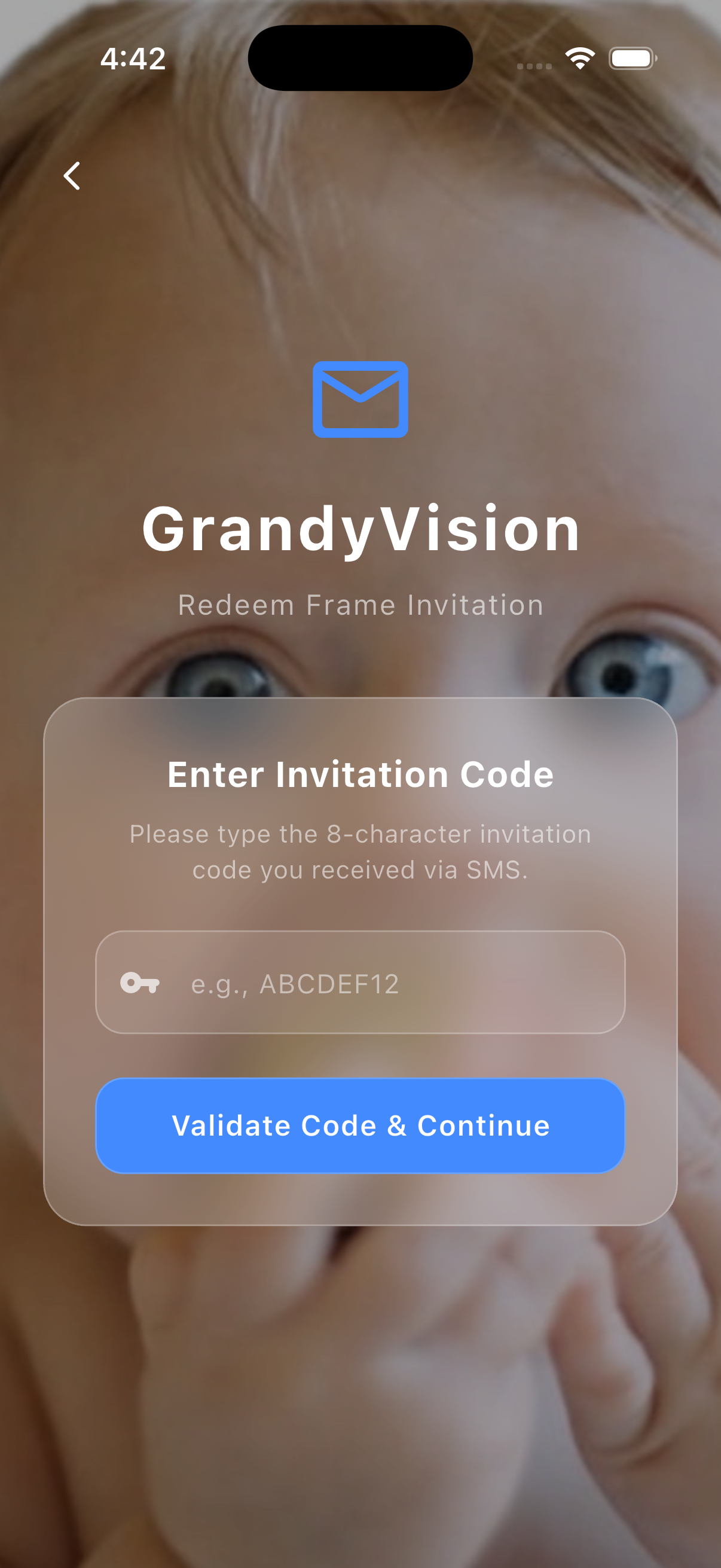
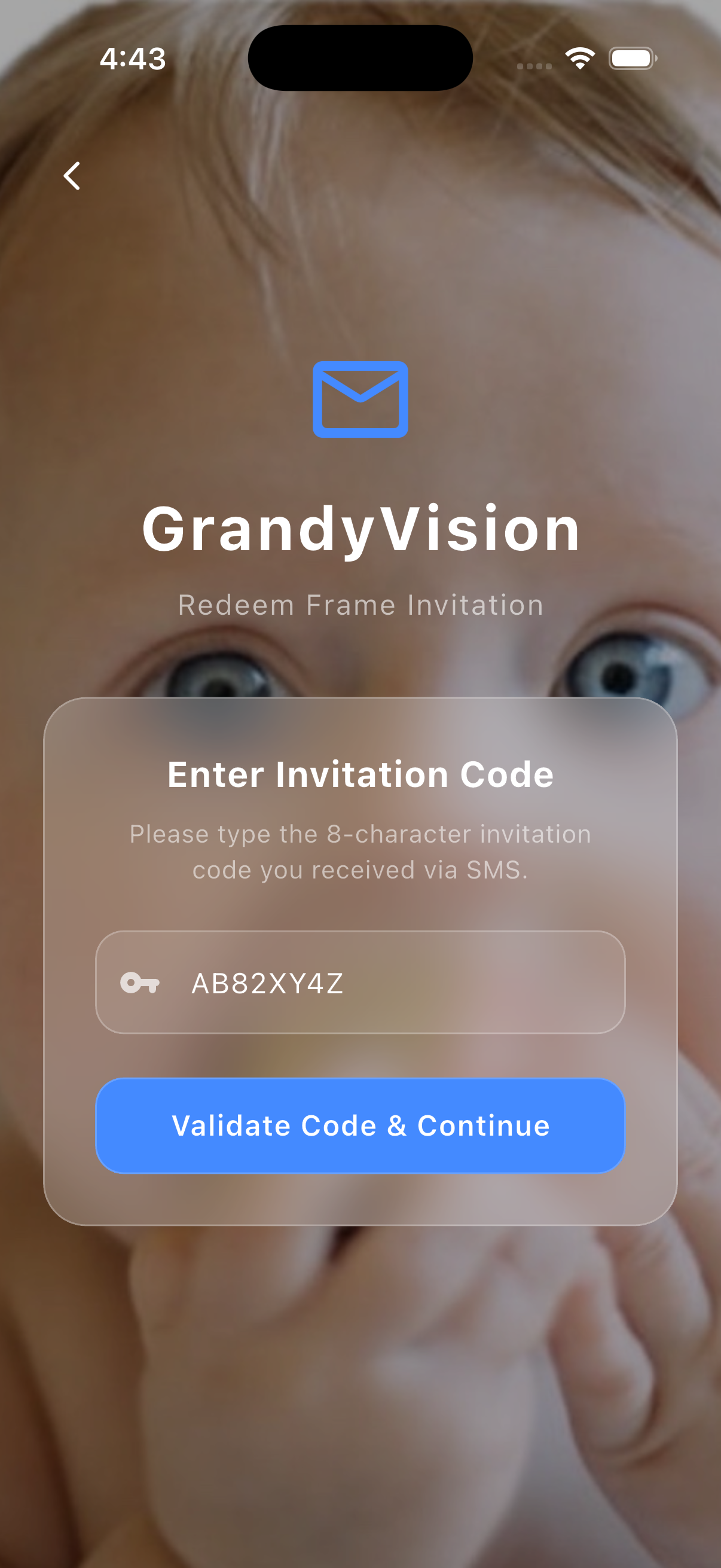
Step 3: Check Invitation Code
Open the app. If you clicked the SMS link, your 8-digit invite code is automatically filled in. Confirm the code to link your account to the recipient's display.
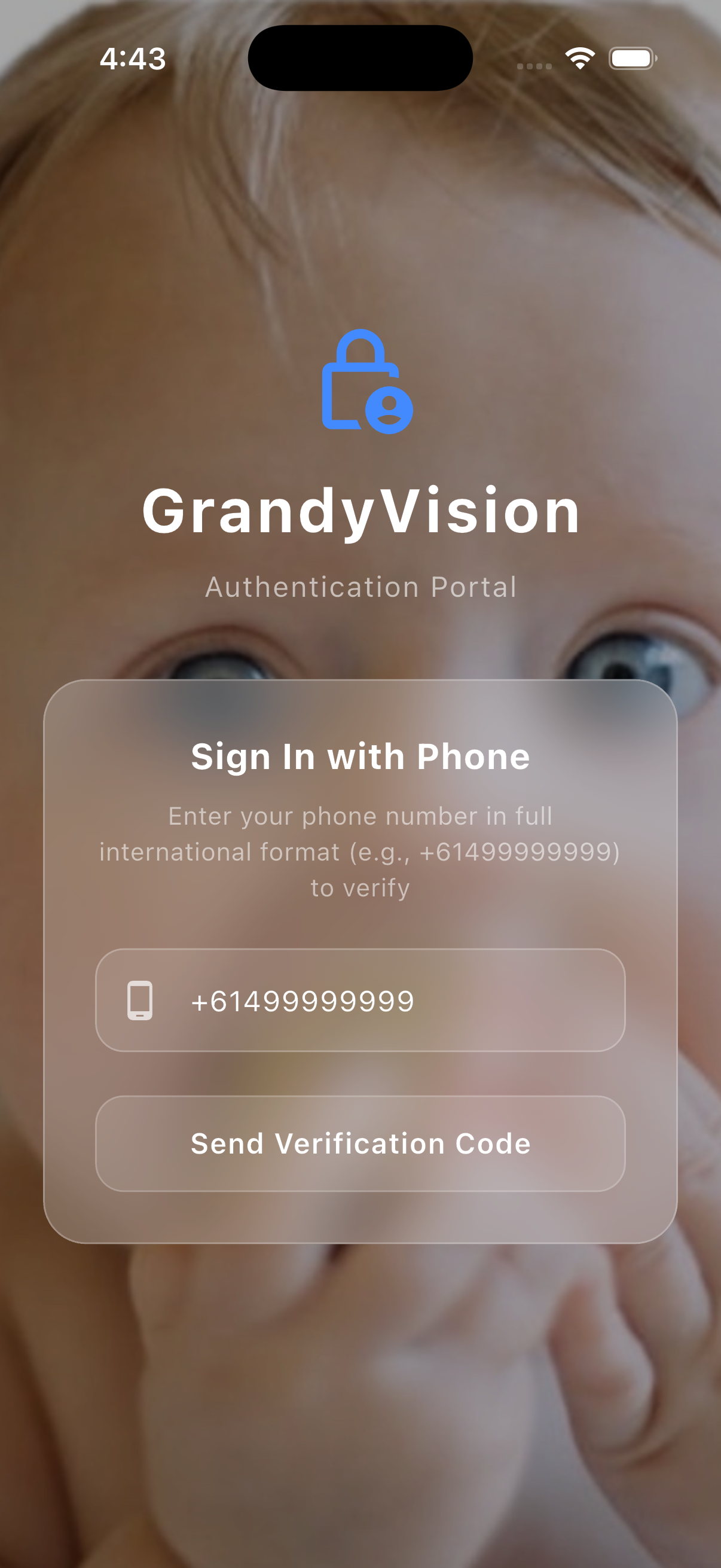
Step 4: Verify Phone Number
Enter your phone number. Firebase Auth sends a secure 6-digit text validation code. Enter the verification code to register your profile safely.
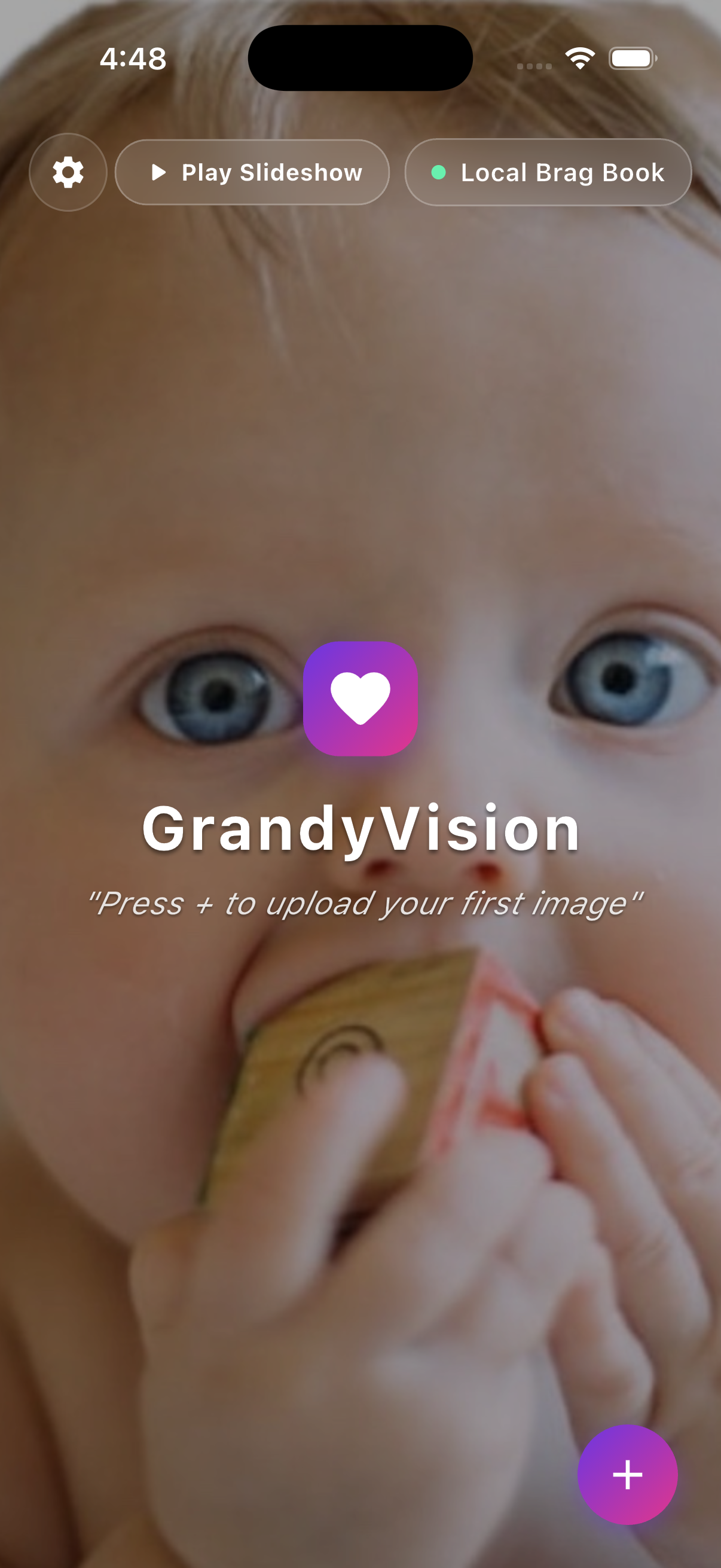
Step 5: Start Uploading Memories!
You are connected! Your home dashboard unlocks. Instantly post photos, crop them to fit full-screen, and create alarms or calendar alerts directly from your phone.
Frequently Asked Questions
No. The Family Poster role is 100% free. The subscription cost is paid entirely by the display's primary Curator (the device owner).
For security and privacy. To ensure random strangers cannot send unsolicited photos to your family member's screen, we confirm that your verified number matches the E.164 target phone on the invitation generated by the Curator.
No. Family Posters have simplified access. Curators retain control over system layouts, screen themes, rotation parameters, sleep schedules, and member access lists.
Your display Curator can remove your old invitation, generate a new poster token containing your updated E.164 phone number, and send you a new link to pair.